> ## Documentation Index
> Fetch the complete documentation index at: https://developers.firmly.ai/llms.txt
> Use this file to discover all available pages before exploring further.
# Generic SAML 2.0
> Configure any SAML 2.0–compliant Identity Provider in firmly Connect.
**Generic SAML 2.0 works with any SAML-compliant Identity Provider** — Okta, Microsoft Entra ID, ADFS, OneLogin, JumpCloud, PingIdentity, Shibboleth, and others. This guide covers what you fill in on the firmly Connect side. For provider-specific application setup steps (creating the SAML application, configuring assertions, mapping attributes), refer to your IdP's own integration documentation.
## Prerequisites
Before you start, make sure you have:
* **At least one verified domain** in firmly Connect — see [Verify a Domain](/firmly-connect/sso/domain-verification).
* **A SAML 2.0 application registered in your IdP** that signs assertions and accepts the SP's Audience / Entity ID and Assertion Consumer Service URL.
* **From your IdP**, either:
* A **metadata XML file** describing the IdP, **or**
* The three values manually: **Entity ID / Issuer**, **SSO URL**, and the **X.509 signing certificate** in PEM format.
## firmly's Service Provider details
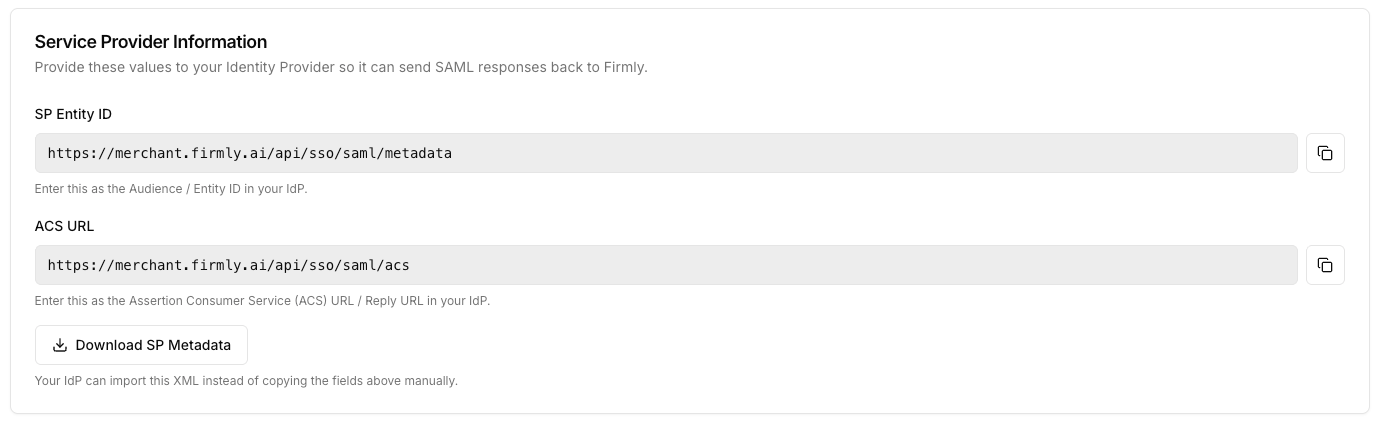
The IdP configuration form displays three Service Provider (SP) values that you provide to your IdP. Copy them from the firmly Connect Dashboard rather than guessing — they are deployment-specific.
| firmly field | Where to use it in your IdP |
| ------------------- | ------------------------------------------------------------------------------------------------------------------------------------------------------------------------------------- |
| **SP Entity ID** | Enter as the **Audience** / **Entity ID** / **SP Identifier** in your IdP application. Read-only on the firmly form, with a copy button. |
| **ACS URL** | Enter as the **Assertion Consumer Service (ACS) URL** / **Reply URL** / **Single Sign-On URL** in your IdP application. |
| **SP Metadata XML** | Click **Download SP Metadata** to download an XML file. If your IdP supports importing SP metadata, upload this file instead of copying the SP Entity ID and ACS URL fields manually. |
 ## Add a SAML Identity Provider
Navigate to the **Single Sign-On** page in your firmly Connect Dashboard settings.
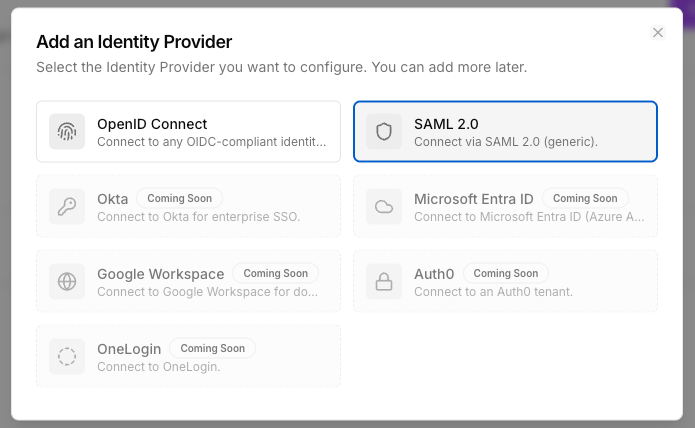
The IdP picker dialog opens with all available protocols.
Click the **SAML 2.0** tile to open the configuration form.
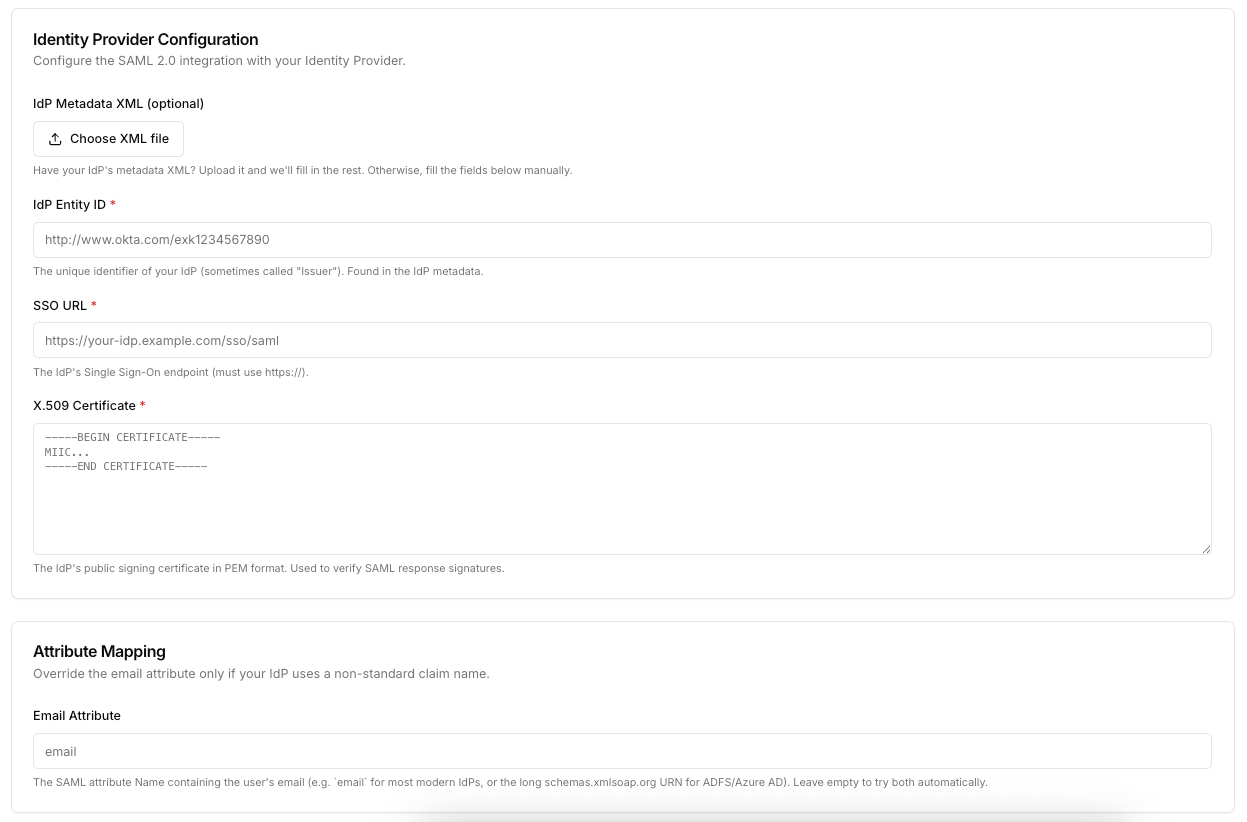
Either upload your IdP's metadata XML for one-click setup, or fill in the three required fields manually. See [Field reference](#field-reference) below.
The IdP is created in **disabled** state. You can now test it, bind it to verified domains, and enable it.
## Add a SAML Identity Provider
Navigate to the **Single Sign-On** page in your firmly Connect Dashboard settings.
The IdP picker dialog opens with all available protocols.
Click the **SAML 2.0** tile to open the configuration form.
Either upload your IdP's metadata XML for one-click setup, or fill in the three required fields manually. See [Field reference](#field-reference) below.
The IdP is created in **disabled** state. You can now test it, bind it to verified domains, and enable it.
 ## Fast path: upload IdP metadata XML
Most modern IdPs offer a downloadable metadata XML file describing the SAML endpoints and signing certificate.
1. Download the metadata XML from your IdP.
2. On the firmly SAML form, click the **IdP Metadata XML (optional)** upload control and select the file.
3. firmly parses the file in your browser and auto-fills **IdP Entity ID**, **SSO URL**, and **X.509 Certificate**.
4. Review the auto-filled values, edit anything if needed, and click **Save**.
The metadata XML itself is **not** stored — only the three extracted fields are persisted.
If your IdP does not provide a metadata XML, fill in **IdP Entity ID**, **SSO URL**, and **X.509 Certificate** manually using the values from your IdP's SAML application configuration.
## Field reference
| Field | Required | What to enter |
| --------------------- | :------: | ------------------------------------------------------------------------------------------------------------------------------------------------------------------------------------------------------------------------------------------------------------------------------ |
| **IdP Metadata XML** | No | Optional metadata XML file from your IdP. Auto-fills the three fields below. UI-only — the file itself is not stored. |
| **IdP Entity ID** | Yes | The unique identifier of your IdP, sometimes called *Issuer*. Example: `http://www.okta.com/exk1234567890`. |
| **SSO URL** | Yes | Your IdP's Single Sign-On endpoint — the URL firmly redirects users to in order to authenticate. Must use `https://`. |
| **X.509 Certificate** | Yes | Your IdP's public signing certificate in PEM format, including the `-----BEGIN CERTIFICATE-----` and `-----END CERTIFICATE-----` lines. firmly validates the PEM wrapper and base64 body, and uses this certificate to verify the signatures on SAML responses. |
| **Email Attribute** | No | The SAML attribute *Name* containing the user's email address. Leave empty to try common defaults automatically. Set this if your IdP emits the email under a non-standard attribute (for example, the long `urn:oid:0.9.2342.19200300.100.1.3` URN used by some directories). |
## Fast path: upload IdP metadata XML
Most modern IdPs offer a downloadable metadata XML file describing the SAML endpoints and signing certificate.
1. Download the metadata XML from your IdP.
2. On the firmly SAML form, click the **IdP Metadata XML (optional)** upload control and select the file.
3. firmly parses the file in your browser and auto-fills **IdP Entity ID**, **SSO URL**, and **X.509 Certificate**.
4. Review the auto-filled values, edit anything if needed, and click **Save**.
The metadata XML itself is **not** stored — only the three extracted fields are persisted.
If your IdP does not provide a metadata XML, fill in **IdP Entity ID**, **SSO URL**, and **X.509 Certificate** manually using the values from your IdP's SAML application configuration.
## Field reference
| Field | Required | What to enter |
| --------------------- | :------: | ------------------------------------------------------------------------------------------------------------------------------------------------------------------------------------------------------------------------------------------------------------------------------ |
| **IdP Metadata XML** | No | Optional metadata XML file from your IdP. Auto-fills the three fields below. UI-only — the file itself is not stored. |
| **IdP Entity ID** | Yes | The unique identifier of your IdP, sometimes called *Issuer*. Example: `http://www.okta.com/exk1234567890`. |
| **SSO URL** | Yes | Your IdP's Single Sign-On endpoint — the URL firmly redirects users to in order to authenticate. Must use `https://`. |
| **X.509 Certificate** | Yes | Your IdP's public signing certificate in PEM format, including the `-----BEGIN CERTIFICATE-----` and `-----END CERTIFICATE-----` lines. firmly validates the PEM wrapper and base64 body, and uses this certificate to verify the signatures on SAML responses. |
| **Email Attribute** | No | The SAML attribute *Name* containing the user's email address. Leave empty to try common defaults automatically. Set this if your IdP emits the email under a non-standard attribute (for example, the long `urn:oid:0.9.2342.19200300.100.1.3` URN used by some directories). |
 **SAML signing certificates expire.** Track the expiry date of the certificate you upload here, and update the **X.509 Certificate** field with a fresh certificate before the old one expires — once the certificate expires, every SAML sign-in for this IdP will fail until you update it.
## NameID and user matching
firmly Connect uses the email returned by your IdP to look up the user. Configure your IdP to:
* Send a `NameID` that is either the user's email address (with a NameID format such as `urn:oasis:names:tc:SAML:1.1:nameid-format:emailAddress`) or any stable user identifier — firmly does not parse NameID for matching.
* Include an **email attribute** in the SAML assertion. By default firmly looks at common email attribute names; if your IdP uses a non-standard name, set the **Email Attribute** field to that exact name.
The email's domain portion must match a verified domain that is bound to this IdP. Sign-in for users whose email domain is not bound to this IdP will be rejected.
## Bind the IdP to verified domains
The IdP configuration form includes an **Authorized Domains** section listing every domain you have verified. Each verified domain appears as a toggle.
* Turn on the toggle for each domain you want this IdP to handle.
* A single IdP can be bound to multiple domains.
* A single domain can be bound to multiple IdPs (users will be presented with a choice at sign-in).
* **At least one domain must be bound** before the IdP can be enabled.
## Enable the IdP
The **Enabled** toggle at the top of the form becomes available once:
* All required fields are filled and pass validation (including a well-formed PEM certificate), **and**
* At least one verified domain is bound under **Authorized Domains**.
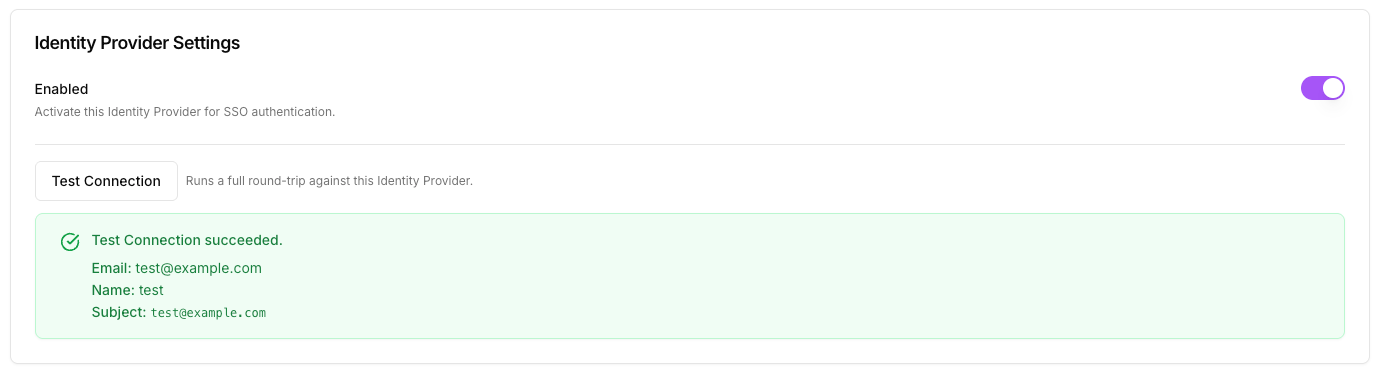
Toggle **Enabled** on to make the IdP usable for sign-in. A disabled IdP keeps all its configuration but cannot complete authentication for any user.
## Test the connection
The **Test Connection** button appears on the IdP form in **edit** mode (after the initial save), provided there are no unsaved changes and all required fields are filled.
Clicking **Test Connection** performs a real SAML round trip against your IdP:
1. firmly redirects you to your IdP's SSO URL with a SAML AuthnRequest.
2. You authenticate with a real account at your IdP.
3. Your IdP posts a signed SAML response back to firmly's ACS URL.
4. firmly verifies the response signature against the configured X.509 certificate, validates the audience matches the configured SP Entity ID, and extracts the email attribute.
On success, the form displays the extracted attributes. On failure, it displays a formatted error pointing to where the round trip broke down (for example, signature verification failure, audience mismatch, missing email attribute).
Always run **Test Connection** successfully *before* enabling the IdP for a domain that you plan to enforce SSO on. A misconfigured IdP combined with enforcement will lock users out of the dashboard until the configuration is fixed.
**SAML signing certificates expire.** Track the expiry date of the certificate you upload here, and update the **X.509 Certificate** field with a fresh certificate before the old one expires — once the certificate expires, every SAML sign-in for this IdP will fail until you update it.
## NameID and user matching
firmly Connect uses the email returned by your IdP to look up the user. Configure your IdP to:
* Send a `NameID` that is either the user's email address (with a NameID format such as `urn:oasis:names:tc:SAML:1.1:nameid-format:emailAddress`) or any stable user identifier — firmly does not parse NameID for matching.
* Include an **email attribute** in the SAML assertion. By default firmly looks at common email attribute names; if your IdP uses a non-standard name, set the **Email Attribute** field to that exact name.
The email's domain portion must match a verified domain that is bound to this IdP. Sign-in for users whose email domain is not bound to this IdP will be rejected.
## Bind the IdP to verified domains
The IdP configuration form includes an **Authorized Domains** section listing every domain you have verified. Each verified domain appears as a toggle.
* Turn on the toggle for each domain you want this IdP to handle.
* A single IdP can be bound to multiple domains.
* A single domain can be bound to multiple IdPs (users will be presented with a choice at sign-in).
* **At least one domain must be bound** before the IdP can be enabled.
## Enable the IdP
The **Enabled** toggle at the top of the form becomes available once:
* All required fields are filled and pass validation (including a well-formed PEM certificate), **and**
* At least one verified domain is bound under **Authorized Domains**.
Toggle **Enabled** on to make the IdP usable for sign-in. A disabled IdP keeps all its configuration but cannot complete authentication for any user.
## Test the connection
The **Test Connection** button appears on the IdP form in **edit** mode (after the initial save), provided there are no unsaved changes and all required fields are filled.
Clicking **Test Connection** performs a real SAML round trip against your IdP:
1. firmly redirects you to your IdP's SSO URL with a SAML AuthnRequest.
2. You authenticate with a real account at your IdP.
3. Your IdP posts a signed SAML response back to firmly's ACS URL.
4. firmly verifies the response signature against the configured X.509 certificate, validates the audience matches the configured SP Entity ID, and extracts the email attribute.
On success, the form displays the extracted attributes. On failure, it displays a formatted error pointing to where the round trip broke down (for example, signature verification failure, audience mismatch, missing email attribute).
Always run **Test Connection** successfully *before* enabling the IdP for a domain that you plan to enforce SSO on. A misconfigured IdP combined with enforcement will lock users out of the dashboard until the configuration is fixed.
 ## Update the certificate
When your IdP rotates the SAML signing certificate (typically annually):
1. Obtain the new certificate from your IdP — either as a fresh metadata XML, or as a PEM-formatted certificate.
2. Open the IdP configuration in firmly Connect.
3. Either re-upload the new metadata XML (which refreshes all three fields), or paste the new PEM into **X.509 Certificate** directly.
4. Click **Save**, then run **Test Connection** to confirm the new certificate works.
There is no separate "rotate" workflow — updating the field and saving is the rotation.
## Disable or delete the IdP
* **Disable** — turn the **Enabled** toggle off on the form. The configuration is preserved, the IdP is removed from sign-in, and any domain enforcement that depended solely on this IdP becomes unavailable.
* **Delete** — from the IdP row's actions menu on the SSO page, choose **Delete**. This is a hard delete, recorded in the audit log, and will unbind the IdP from any domains that referenced it.
## Troubleshooting
The X.509 certificate stored in firmly does not match the certificate your IdP signed the response with. Re-download the current certificate (or metadata XML) from your IdP and update the **X.509 Certificate** field. Make sure the PEM is pasted with the `-----BEGIN CERTIFICATE-----` and `-----END CERTIFICATE-----` lines intact and no extra whitespace.
The SAML assertion did not include a recognizable email attribute. Confirm your IdP application is configured to release an email attribute, and set the **Email Attribute** field to the exact attribute *Name* your IdP emits. ADFS and some Microsoft directories use long URI- or URN-style attribute names (e.g. `http://schemas.xmlsoap.org/ws/2005/05/identity/claims/emailaddress` or `urn:oid:0.9.2342.19200300.100.1.3`) — paste that exact string.
Your IdP is sending an Audience that does not match firmly's **SP Entity ID**. Copy the **SP Entity ID** value from the firmly form *verbatim* and paste it into your IdP application's Audience / Entity ID field. Trailing slashes and scheme matter.
Your IdP is refusing to redirect to firmly's ACS URL. Copy the **ACS URL** from the firmly form *verbatim* and add it to your IdP's allowed reply / ACS URL list.
The **Test Connection** button is hidden while there are unsaved changes on the form. Save first, then click **Test Connection**.
## Next steps
Add and verify the domains you want this IdP to handle, and enable enforcement when you're ready.
Recap the full setup flow and per-domain enforcement model.
## Update the certificate
When your IdP rotates the SAML signing certificate (typically annually):
1. Obtain the new certificate from your IdP — either as a fresh metadata XML, or as a PEM-formatted certificate.
2. Open the IdP configuration in firmly Connect.
3. Either re-upload the new metadata XML (which refreshes all three fields), or paste the new PEM into **X.509 Certificate** directly.
4. Click **Save**, then run **Test Connection** to confirm the new certificate works.
There is no separate "rotate" workflow — updating the field and saving is the rotation.
## Disable or delete the IdP
* **Disable** — turn the **Enabled** toggle off on the form. The configuration is preserved, the IdP is removed from sign-in, and any domain enforcement that depended solely on this IdP becomes unavailable.
* **Delete** — from the IdP row's actions menu on the SSO page, choose **Delete**. This is a hard delete, recorded in the audit log, and will unbind the IdP from any domains that referenced it.
## Troubleshooting
The X.509 certificate stored in firmly does not match the certificate your IdP signed the response with. Re-download the current certificate (or metadata XML) from your IdP and update the **X.509 Certificate** field. Make sure the PEM is pasted with the `-----BEGIN CERTIFICATE-----` and `-----END CERTIFICATE-----` lines intact and no extra whitespace.
The SAML assertion did not include a recognizable email attribute. Confirm your IdP application is configured to release an email attribute, and set the **Email Attribute** field to the exact attribute *Name* your IdP emits. ADFS and some Microsoft directories use long URI- or URN-style attribute names (e.g. `http://schemas.xmlsoap.org/ws/2005/05/identity/claims/emailaddress` or `urn:oid:0.9.2342.19200300.100.1.3`) — paste that exact string.
Your IdP is sending an Audience that does not match firmly's **SP Entity ID**. Copy the **SP Entity ID** value from the firmly form *verbatim* and paste it into your IdP application's Audience / Entity ID field. Trailing slashes and scheme matter.
Your IdP is refusing to redirect to firmly's ACS URL. Copy the **ACS URL** from the firmly form *verbatim* and add it to your IdP's allowed reply / ACS URL list.
The **Test Connection** button is hidden while there are unsaved changes on the form. Save first, then click **Test Connection**.
## Next steps
Add and verify the domains you want this IdP to handle, and enable enforcement when you're ready.
Recap the full setup flow and per-domain enforcement model.